
P3 : Can we force an automatic Pipeline deployment without an extra “Deploy” click ?
Introduction
Power Platform Pipelines deploy your solution one stage at a time, and each stage needs its own manual Deploy click. For PREPROD and PROD, fair enough, you want a human to intervene and approve. But from DEV to TEST to UAT ? Clicking Deploy three times for the same artifact feels like something a modern tool like Power Platform Pipeline should handle on its own.
So I asked a simple question: once a deployment succeeds, can I make the next stage trigger automatically, with no extra click ? Power Platform Pipelines tracks everything in Dataverse tables via its custom actions and custom APIs. So I bet there could be a way to hook into that and reproduce what the Power Platform Pipeline background engine does internally. To make a long story short: there is not, at least not natively. But finding out exactly WHY turned into a long proper reverse-engineering session, and what the background engine refused me to do told me more about how Power Platform Pipelines works than any available documentation out there . In this article you will find every problem I faced, and what each one taught me.
So that you are aware, this is a closing article. This third article closes the series ALM with Power Platform Pipelines, and it will be more brief than the first two, but it will be very insightful, stay tuned.
On the last article here, we learned that when creating Pipelines stage, we have options to do some “semi-automations/approval” by activating Gated extensions like :
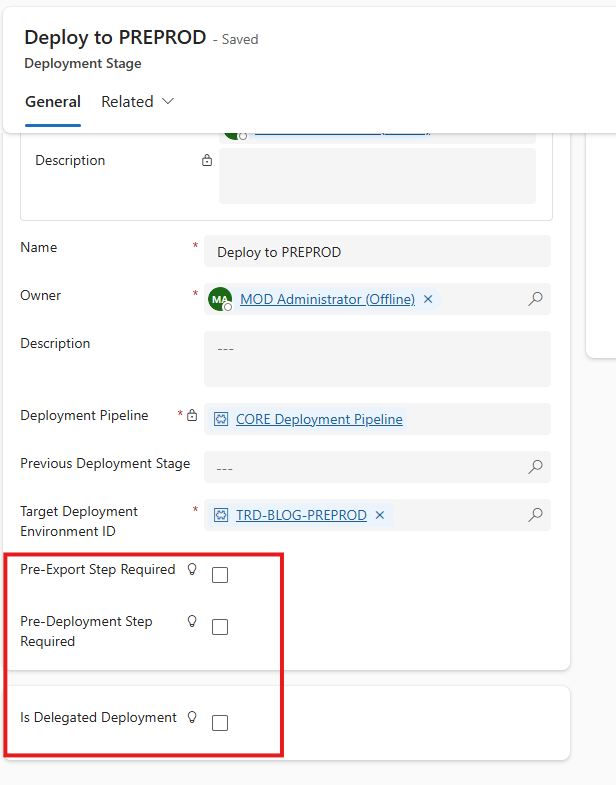
- Pre-Export Step Required : This field allows extension of the stage/pipeline. If checked it triggers an action that can be caught and used to extend ( approval, run custom flow, action to do other background processes) the stage before doing the actual export of the solution from the development environment.
- Pre-Deployment Step Required : Also, this field allows extension of the stage/pipeline. If checked it triggers an action that can be used to extend ( approval, run custom flow, action to do other background processes) the stage before doing the actual deployment of the solution to target environments.
- Is delegated deployment : To send approval to owner of the pipeline before it start deployment
The simplest way to implement/use gated extension for approval is by creating some low code like Power Automate to be triggered, and call the respective unbound action via the dataverse connector “Perform a bound or unbound action”. Here the available list:
| Gated extension | Power Automate Trigger | Power Automate action to call |
| Pre-Export Step Required | OnDeploymentRequested | UpdatePreExportStepStatus |
| Is delegated deployment : | OnApprovalStarted | UpdatePreDeploymentStepStatus |
| Pre-Deployment Step Required | OnPreDeploymentStarted | UpdatePreDeploymentStepStatus |
These options are ways to extend Power Platform Pipelines, but are not ways to make Power Platform Pipelines more fluid or automatic/autonomous, because they add more manual steps to the process rather than eliminate them ( the ultimate goal)
The idea of automation is to provide as little human interaction as possible to a given process. Since gated extensions just add more steps to the process, this is clearly not the way to make Power Platform Pipelines more autonomous. So this is why I went on a discovery journey, trying to “reengineer” Power Platform Pipelines to deploy through all environments from a single user click, instead of one Deploy click per stage.
Trying to force an automatic Pipeline deployment without extra click “Deploy”
The Problem
If you want to deploy a solution to, lets say three downstream environments, for you to launch the deployment, Power Platform Pipelines requires go to the source environment, select the desired solution, click Deploy and then select the desired pipeline and Deploy.
After the deployment succeeds on the first environment, lets say TEST, to deploy to UAT it requires you to go again on the source environment, click Deploy again. If it succeeds on UAT, it requires another Deploy click to reach PREPROD, and another one to reach PROD. So, it requires one manual Deploy click per stage.
For PREPROD and PROD it is normal to require manual approval/click deploy, nothing against it. But I want to be able to deploy from DEV to TEST and after the deployment on TEST succeeds, then deploy to UAT directly without extra click.
Solution : Proposition that lead to a discovering journey
Normally if the deployment succeed, on the first environment in our case – TEST, we would like to have a way to deploy automatically to subsequent environments without having to click Deploy, Deploy , Deploy to every one of them.
Why would one like to have that ?
First, to match the flexibility of basic projects ( developer/personal projects) , but also to provide flexibility to real enterprise projects as others ALM tool/platform like Azure DevOps or Github Actions. And for Power Platform Pipelines to match that it should have a way to enable/disable or bypass extras manual click to launch deployment past the first one that succeeds.
This was what I thought could be possible, since Power Platform Pipelines tracks every validation and stage history in Dataverse tables. I thought it could be done by exploring all the tables, Custom Actions and Custom APIs that come with the Power Platform Pipelines ISV solutions. But I ended up proving that you cannot reengineer the normal process : the PPP team made it very hard to reproduce the deployment process the way it does it internally. How did I come to that conclusion ? Glad you asked.
First Attempt : The curious developer intuition – try to create some records on the right order via model driven forms
Knowing that Power Platform Pipelines stores data on tables that come with its own ISV solution, it was logical that if I created records directly from the respective forms I would achieve it just like magic. But it is not possible to initiate a deployment by simply creating records through the UI. I even tried to duplicate successful Deployment Stage Run records, the internal process complained by throwing an error saying “artifactid must be null”
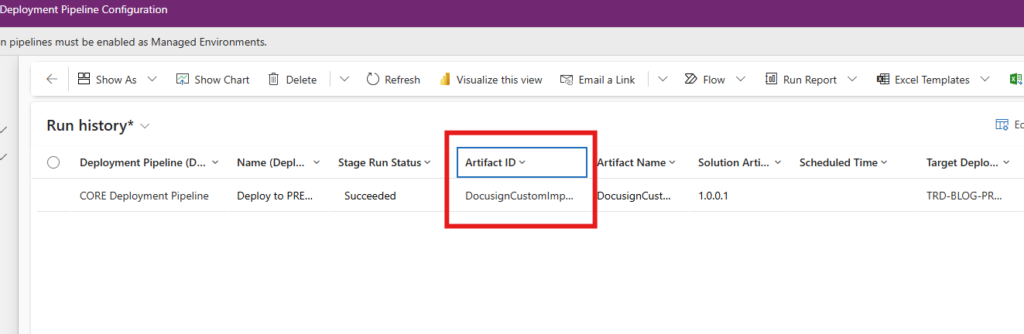
Record to be cloned
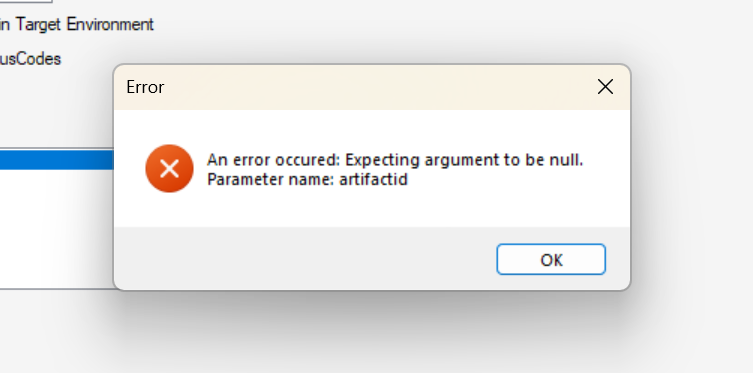
Error received
it implies that we can not initiate a Deployment Stage Run and give our own Artifact ID ( lookup pointing to the physical solution that was previously deployed), meaning the Internal background logic is the one that knows which solution to deploy. And this is the rule that enforces integrity through the pipeline ( assuring that we deploy the same artifact to all environments)
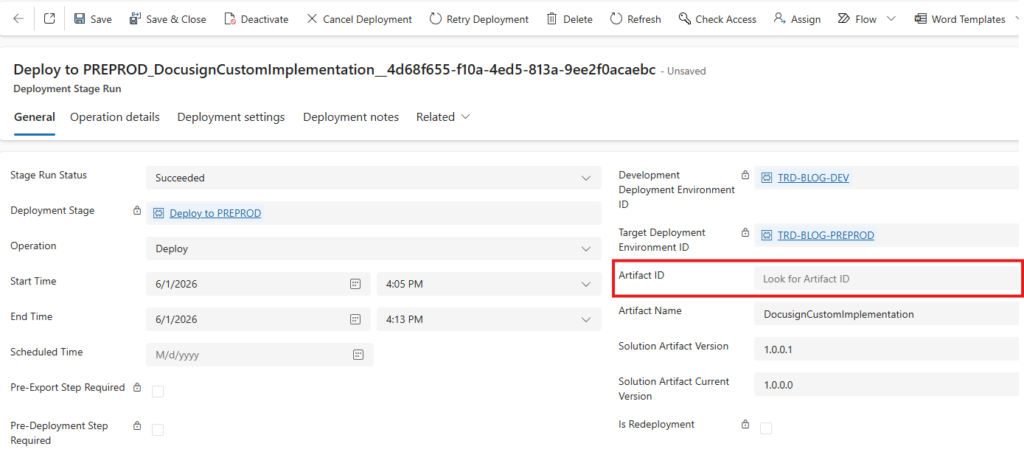
I then removed the value of the Artifact ID lookup to get past this error. Luckily it passed, but then I got another error : “Cannot insert duplicate key”.
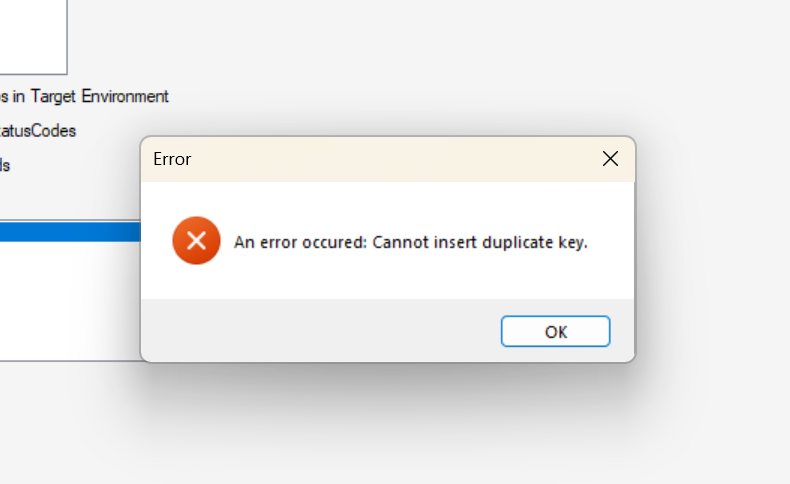
I immediately thought : it must have an alternate key on the Deployment Stage Run entity. So I went to check the Keys of the table, and I found none, not a single alternate key visible in the UI.
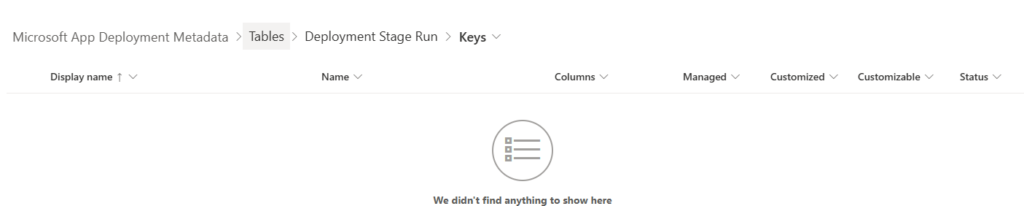
Which means the internal background process calculates its own deduplication signature, invisible to us, a sort of internal token, to prevent two identical runs from coexisting.
When we enter the Deployment Stage Run record, in the form ribbon there is a button “Retry Deployment”. I clicked on it, but I received an error telling me that retry is not permitted because the run status is not “Failed”.
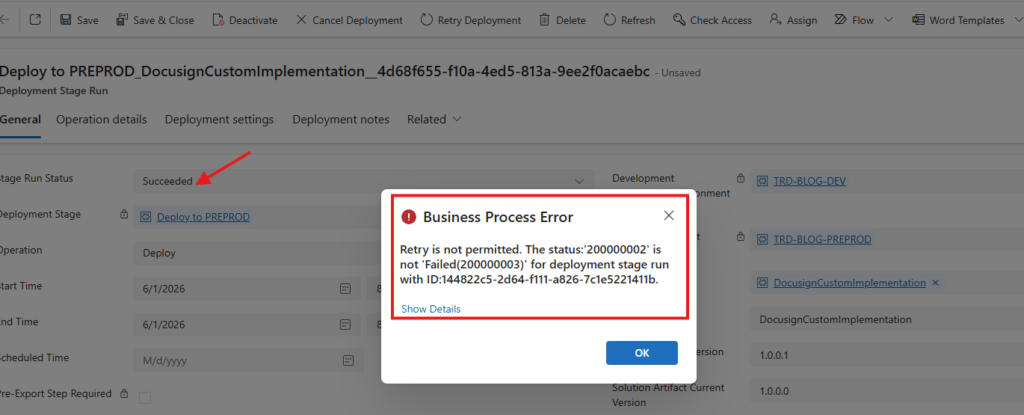
In other words, only a failed deployment can be retried.
So I forced the status to “Failed” and clicked “Retry Deployment” again. A new error came up : “User does not have access to update these attributes in the stage run record”. So I was not even allowed to modify the status field myself.
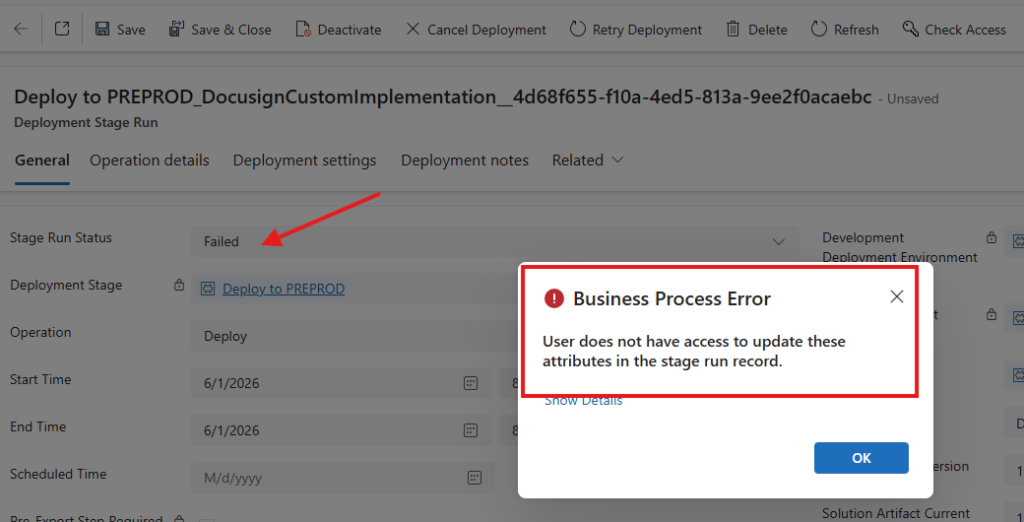
I saw a lookup field Deployment Stage, that points to the target environment. I immediately thought : if I can redeploy a stage, all I have to do is modify the Deployment Stage lookup to point to the desired environment, set the IsRedeployment field to Yes, and press the “Retry Deployment” button. But these two crucial fields are not modifiable on the form, not even with a tool that unlocks read-only fields like (God Mode). The two fields were blocked on purpose.
I realised it is not possible to create a new deployment via the UI.
Second Attempt : The curious developer intuition – try to create some records on the right order via Power Automate or API:
So it was not possible via the UI, but I bet I could insert data into the table via Power Automate. That was not possible either : I got the same errors as on the UI, and the fields that were locked on the form were simply not present in the Power Automate Dataverse connector. The plan was simple : duplicate the stage that succeeded, change the Deployment Stage to the target one, and retrigger the deployment. But the locked fields and the same validation errors closed that door too.
Third Attempt : The experienced developer intuition – try to create some records on the right order by directly calling CustomApi used by Power Platform Pipelines ISV:
I didn’t want to go there, but this was my last resort to be able to conclude my research. Since Power Platform Pipeline is calling some internals CustomApi , the most commons ones are :
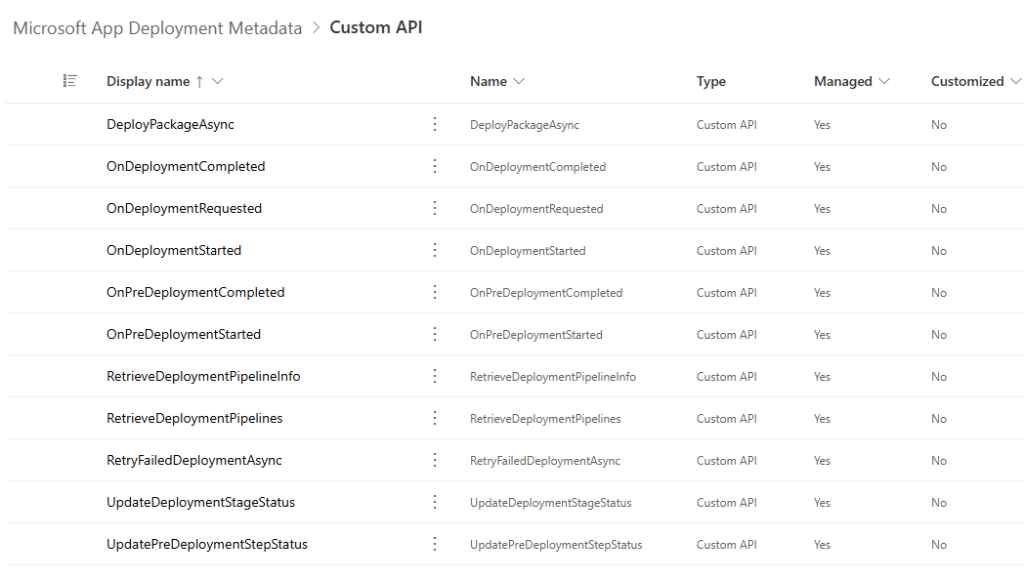
Some are just useful for gated extensions, others just update some status, but nothing particular. The only promising custom api was the DeployPackageAsync.
The DeployPackageAsync is the custom api that is called to deploy a solution to a new Stage (environment). This one takes only 1 Request parameter StageRunId and returns no Output parameter at all.
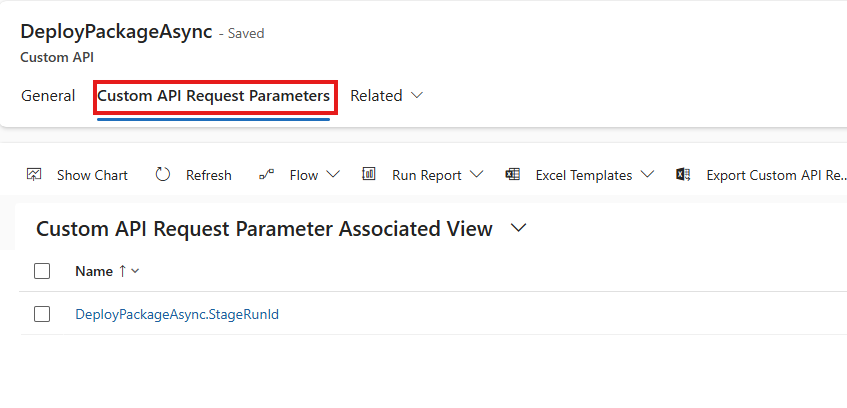
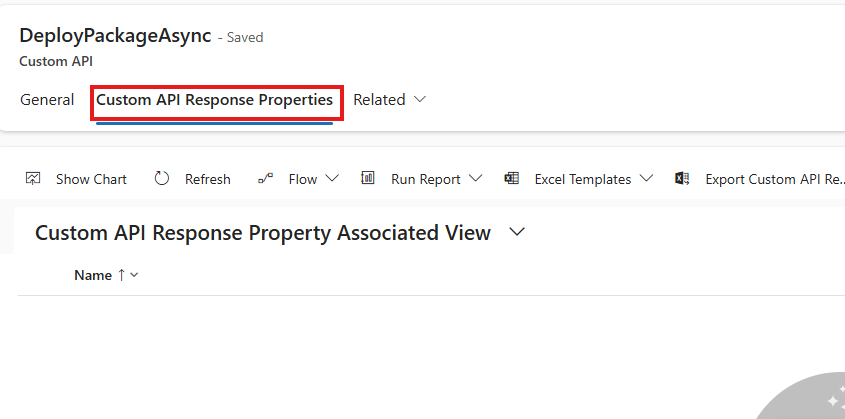
I thought I could call it from code or Power Automate and pass it the StageRunId, but then comes the question : where do I get the StageRunId from ? The StageRunId is an existing stage run id, and I am not able to create one, neither from the UI, Power Automate nor the API. This means another internal private customapi/process generates this StageRunId and passes it to the DeployPackageAsync custom api. In fact DeployPackageAsync is the executor, not the creator of the Deployment Stage Run itself. It depends on another process that calls and passes it, the StageRunId.
This attempt was the ultimate attempt and it proved only one thing, that we cannot reengineer Power Platform internal logic to make it more fluid by forcing deployment to avoid extra click.
Conclusion
This rigidity and limitation imposed by Power Platform Pipelines may have a reason beside security. Good thing is, there is a new pac CLI command group, pac pipeline, with a pipeline deploy command that can start a deployment without going through the maker UI. But it still has to be run from outside the environment (a machine or agent running the CLI), and it requires you to pass the solution name, stage id and versions explicitly. In other words, the moment you want true automation, you leave the native Power Platform Pipelines experience and step into the Azure DevOps or GitHub Actions territory. Which is exactly the next series I will be publishing.