The funny thing about being a tech lead is that you always have to clear blocking issues for other devs on the team, and the questions always come in the form of: “That is not working,” “It works on the DEV env, but is not working on other environments,” or “There is a bug because it is not working as expected.“
Recently on a project, a team member raised a concern about an autonumber field, saying: “The client raised a bug because in UAT, PREPROD, and PROD, the autonumber is not starting with the correct digits defined in the development environment. It works in Dev, so it must be a deployment problem.”
I explained to him that since the deployment was handled by the CI/CD pipeline overnight, it wasn’t a case of a missing deployment. I told him that in the old days, before autonumbers were an OOB feature in Dataverse/D365, we used external ISV solutions or XrmToolBox to create these fields. Back then, the starting number (the Seed Value) was not solution-aware; we had to manually configure it for each subsequent environment. I suspected the same was true for Dataverse autonumbers.
To make a long story short, I was right. It remains the case today: the Seed Value (starting number) of a Dataverse autonumber column is not solution-aware. It is not exported or imported between environments as part of a solution deployment to other environments.
What actually are autonumbers ?
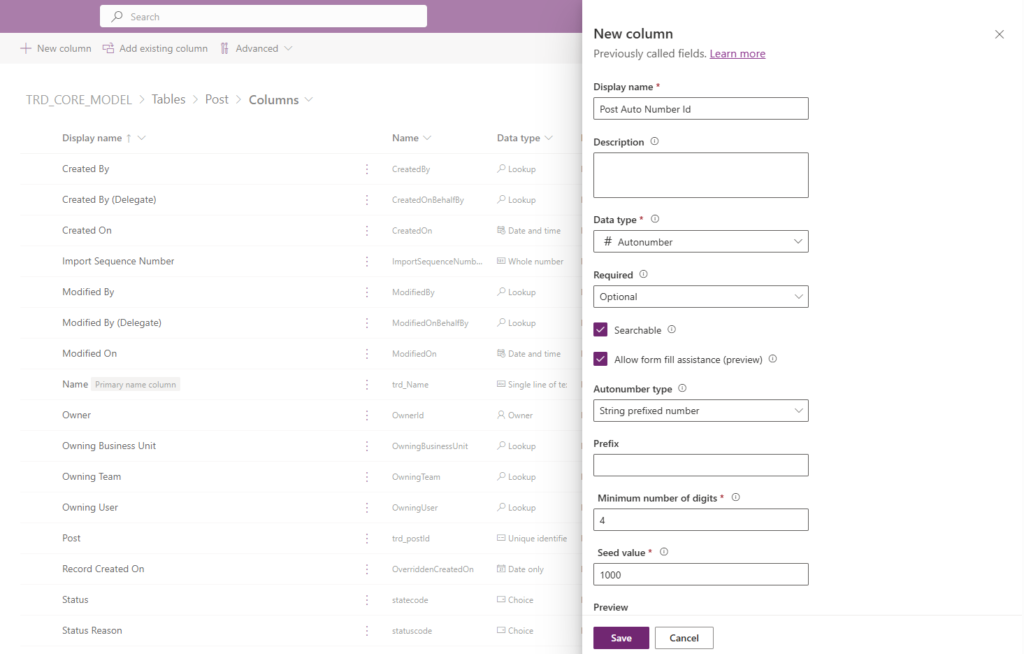
Autonumbers are essentially text fields disguised as the “Autonumber” data type. Behind the scenes, they use a specific mechanism to increment their value automatically based on a format and a starting point called a “seed.” What does it mean to “use a specific mechanism”? I’m glad you asked.
It means that somewhere in your environment, Microsoft runs background logic to keep track of incremental values from the moment your autonumber field is created. This background logic is a native internal process (similar to a plugin) that exists wherever the table containing the autonumber field is deployed (in all subsequent environments).
What constitutes an autonumber field ?
An autonumber field consists of four key metadata attributes that work together to ensure it behaves as it should. Those are:
Autonumber type
Autonumbering is not just about incrementing a number; it was created to allow a SysAdmin to personalize the number generation. The way it can be personalized is first by the autonumber type, then by specifying a prefix. There are three autonumber types:
- String prefixed number : It allows a SysAdmin to personalize the generated number/text by adding a constant string at the beginning of the sequence.
- Date prefixed number : It allows a SysAdmin to personalize the generated number/text by adding a current date string at the beginning of the sequence.
- Custom : The custom type is more flexible; it allows a SysAdmin to combine the first two types and generate numbers based not just on a prefix, but a suffix also. It allows for placing constant or random numbers at the beginning, middle, or end of the generated sequence.
Prefix or Date format
“This is a metadata attribute that allows you to specify the content of the prefix within the sequence that will be generated. If the autonumber type is ‘String prefixed number,’ then the prefix field will be available to be filled with text. If the autonumber type is ‘Date prefixed number,’ then you will be presented with a date format dropdown to choose the format of the date that will populate the prefix part of the sequence when records are created.
Minimum number of digits
It allows a SysAdmin to specify the minimum digit length for the dynamic part of the generated sequence. By default, this is 4, and it impacts the seed value.
Seed Value
The seed value is the starting point of our misunderstanding. It is the number that specifies where the dynamic part of the sequence must begin. By default, this is 1,000 if the minimum number of digits is 4. The system logic dictates that since the dynamic part of the generated number must contain four digits, and the seed value is 1,000, the first value will be ‘Prefix-1000,’ the next ‘Prefix-1001,’ and so on.
Lets use this configuration for later examples :
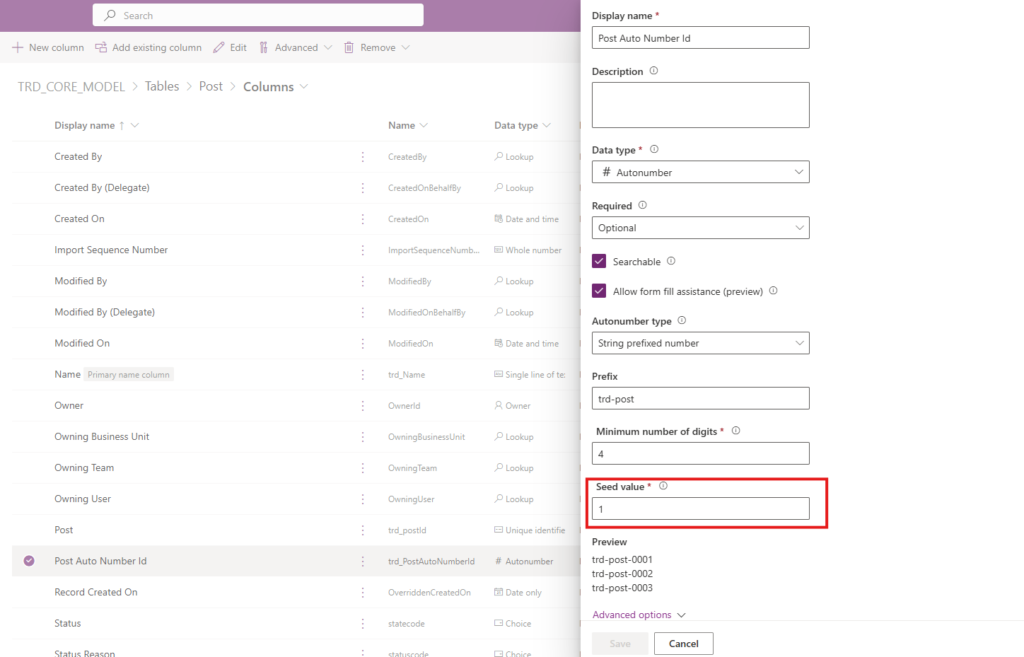
Don’t fall into the trap
Seed Value must be configured for each target environment
I have deployed our solution containing the table with the ‘Post Auto Number Id’ autonumber field to the PREPROD environment; let’s check if the seed value is configured the same as in the DEV environment.
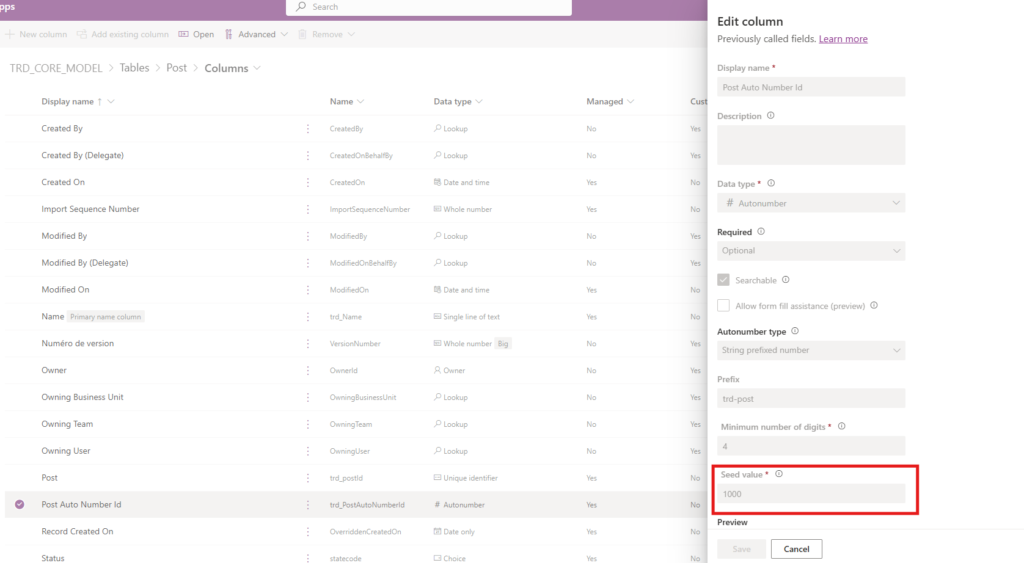
Clearly not.
Once you have created your autonumber field and configured the four metadata attributes, and then tested them in the DEV environment, you deploy to a subsequent environment. You wish everything worked as it did in DEV, but it doesn’t.
Keep in mind that the Seed Value metadata attribute is not solution-aware. If you modified the default value, as is common, that new value is only available in the DEV environment. Because it is not solution-aware, it is not included when exporting or importing the solution to subsequent environments. Therefore, you must also change the default Seed Value on the target environment just as you changed it in the DEV environment.
MS specification doc

Seed Value add solution layers if changed through solution
Lets then change via default solution, on the PREPROD environment.
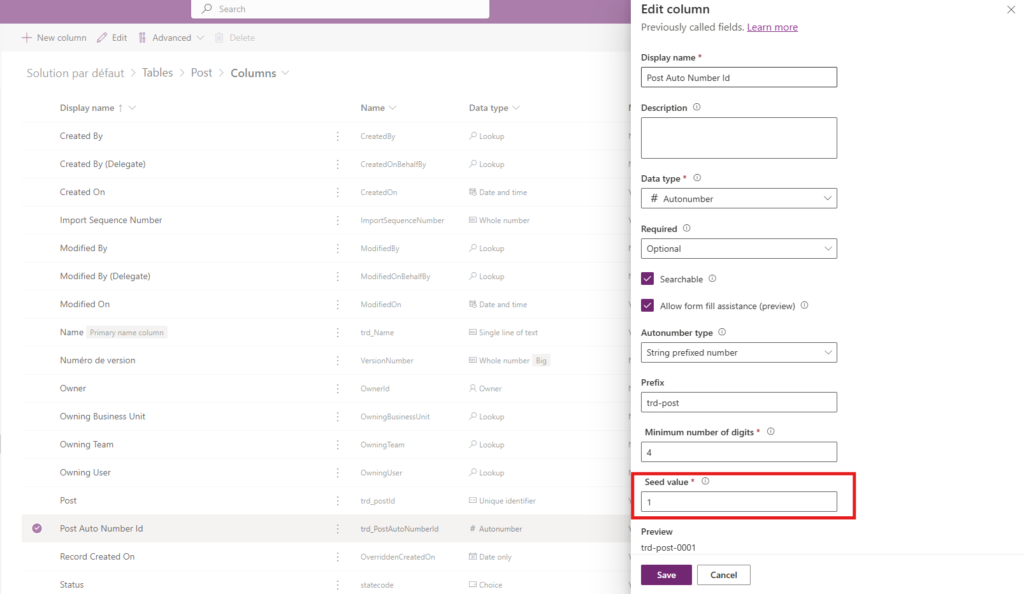
Save and check, solution layers
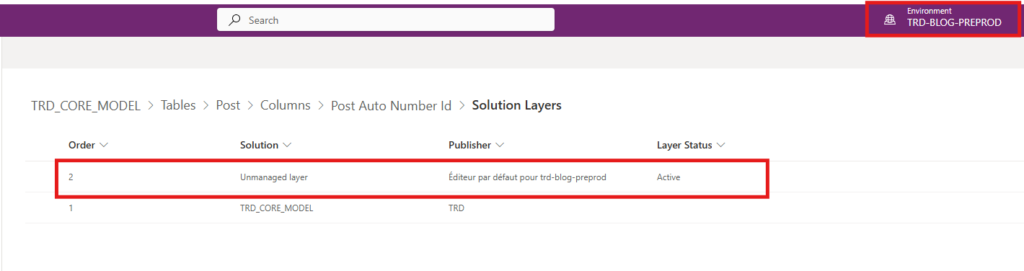
Clearly there is a solution layer added, why ?
Although the Seed Value is not solution-aware and is not exported or imported to other target environments, it does add solution layers if changed via the Solution Explorer. If it is non-negotiable that the sequence starts at the same number as in the Dev environment, you have to find another way – either changing it through the API or via the XrmToolBox Autonumber Manager plugin. These two methods add no solution layers.
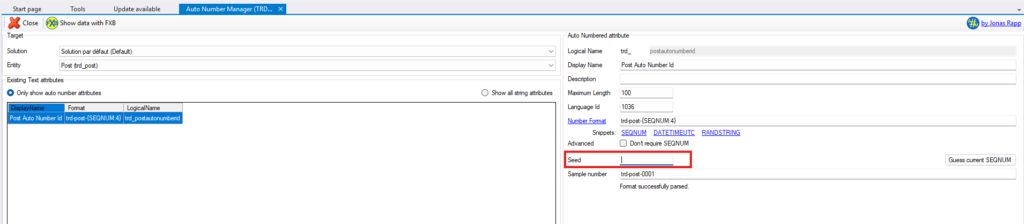
Moral of the story
We are engineers; we like to fix things and make them work as expected. However, I must say that we fall easily into traps trying to meet user expectations, even when working with proprietary software. We must take a step back and realize that making something work ‘as expected’ does not mean the tool was originally implemented or built to behave as the user imagined.
Sometimes, ‘it is what it is.’ We must read the specifications to avoid the trap of wanting things to work based on fantasy instead of how they were designed. For that, we need to start using Microsoft Docs as our primary starting point.
Adilson